|
TRUST 1.9.8
HPC thermohydraulic platform
|

|
TRUST 1.9.8
HPC thermohydraulic platform
|
The following tutorials require a Linux-based computer.
See the instructions here.
If you need help installing TRUST, contact the TRUST support team.
Whenever you want to use TRUST or one of its derived commands, the first thing to do is to load its environment:
This needs to be done in every new terminal where you want to use the TRUST binary or utilities.
As you will see in the following, TRUST uses .data files. In order to have keywords highlighted in the .data files, we recommend the user run:
Now you can use TRUST:
You can get the list of trust command options with:
To run a TRUST simulation, all you have to do is write a correctly formatted data file. This is one of the advantages offered by the platform, allowing the user to change, modify, and test calculations without needing to write C++ code or recompile and link with the TRUST library. However, there is a specific syntax that must be respected to ensure that the TRUST interpreter can read the data file correctly and perform the necessary calculations.
We recommend using SI units for all quantities (velocity, viscosity, etc.)
This first case aims to give you the basics for launching a numerical simulation with TRUST. The test case is therefore quite simple, so you can get started with TRUST smoothly.
This first tutorial simulates the flow around a square cylinder in 2 dimensions as shown below.

The geometry used is shown in the figure below:
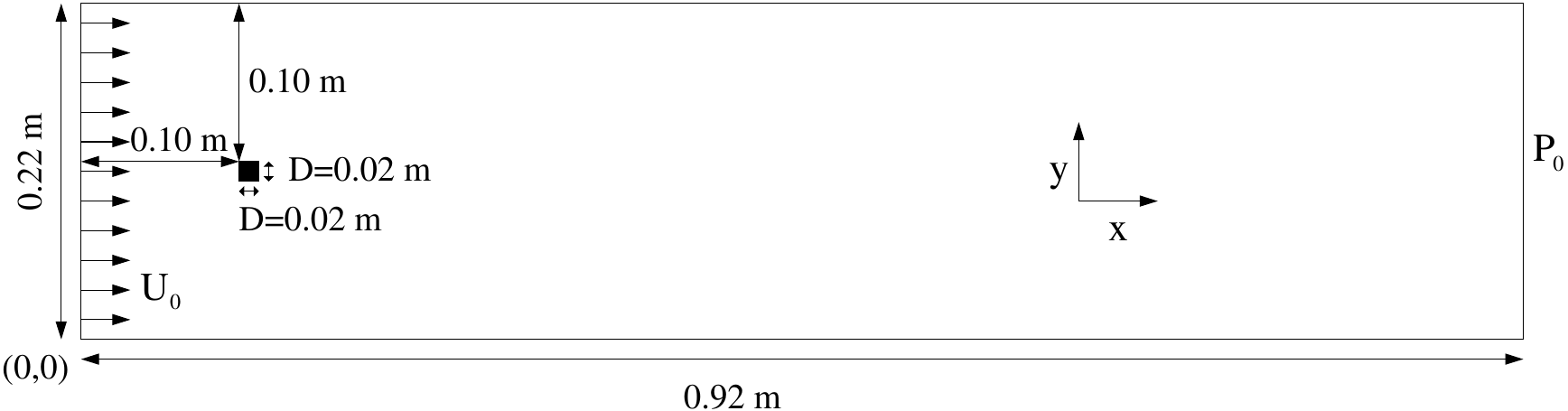
The physical properties of the fluid and boundary conditions are:
| Fluid Properties | Value |
|---|---|
| Dynamic viscosity (μ) | 3.7 × 10⁻⁵ kg·m⁻¹·s⁻¹ |
| Density (ρ) | 2 kg·m⁻³ |
| Boundary Conditions | Value |
|---|---|
| Inlet velocity (U₀) | 1 m·s⁻¹ |
| Outlet pressure (P₀) | 0 Pa |
| Square cylinder | No-slip wall |
| Upper and lower walls | Symmetry boundary condition |
This leads to a Reynolds number: Re = U₀ × H_inlet × ρ / μ = (1 × 0.22 × 2) / (3.7 × 10⁻⁵) = 11891
As mentioned previously, the first thing to do is to load the environment:
In TRUST, we have several pre-existing non-regression test cases. You can copy a single test case by specifying its name:
For this tutorial, we will work with the Obstacle test case. Copy it from the database using:
The handful of trust flags used in this tutorial:
| Option | Details |
|---|---|
| -copy CASE | Copy a test-case data file from the TRUST database to the current dir. |
| -evol | Monitor the calculation in a GUI. |
| -clean | Remove every file TRUST generated in the current directory. |
| -index | Open the TRUST resource index. |
| -help, -h | List every option (the live source of truth). |
For the full grouped flag reference (project scaffolding, debugging, profiling, cluster submission, ...), see the TRUST command-line reference section of the introduction.
To display the options of TRUST's executable itself, run:
You can now launch the simulation using:
Let us now explore the data file that drives the simulations. For more details regarding .data files, see the How to use a data file page.
First, edit the data file Obstacle.data:
In this simulation, we use a forward Euler scheme (explicit) for time discretization with a fixed time step of 0.005s (dt_min=dt_max). Set the time step to 0.004s.
Then, replace the keyword format lml with format lata inside the post-processing block in order to use the post-processing tool VisIt during and/or at the end of the calculation.
You can monitor your numerical simulation with:
This tool allows you to launch sequential calculations and visualize results.
To launch the calculation, click on the button Start computation!.
You can now visualize some values, depending on your .data file:
Close the GUI.
Clean your results by running:
Then, relaunch your computation. Once the calculation is finished, visualize the results with VisIt:
Or by using the trust -evol tool and clicking on Visualisation in the right menu.
Now, let's configure VisIt. First, in the menu File → Open file, select Off instead of Smart for the File grouping option. For the Filter, specify *.lata to list only the lata files (results). Then save your choices in the menu Options → Save Settings.
You can now open the file Obstacle.lata with: File → Open file.
Start by visualizing the mesh in the Plots area with Add → Mesh → dom, then click on the button Draw. Zoom and move the mesh in the right window. You can zoom out with the right button (View → Reset view) or with a combination of Ctrl and the left button.
Now we can visualize the pressure field (Plots area: Add → Pseudocolor → PRESSION_SOM_dom + Draw, then select the last time on the Time slider).
You can remove or hide the mesh (select Mesh then click on Delete or Hide/Show).
Then, visualize the velocity field: Add → Vector → VITESSE_SOM_dom + Draw.
You can change each plot's attributes:
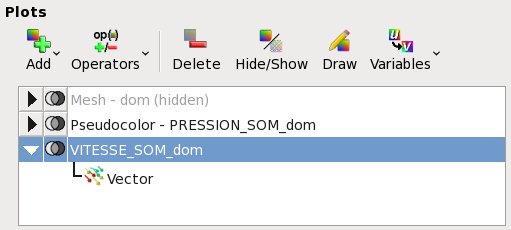
To save your visualization as an image, go to File → Save window. A PNG file will be created in your working directory.
Now, add a second screen with Windows → Layouts → 1x2.
In this screen, plot a horizontal pressure profile:
Note that it is necessary to update (button Draw) the right window after adding a new plot or changing an option. Automatic updates can be enabled by activating Auto apply at the top right of VisIt's GUI.
You can now create new fields (expressions) with Controls → Expressions.
VisIt also allows you to animate your visualization and/or create a movie: File → Save movie.
Another useful tool in VisIt is queries, which enable you to perform operations on your variables: Controls → Query.
Finally, save your work with: File → Save session.
To reopen it in a future VisIt session, use: File → Restore session.
During a 3D visualization, you may want to visualize a slice of your numerical simulation. To do so, use one of the available operators in Plots → Operators → Slicing → Slice.
For more information on VisIt, refer to:
Start by editing the different output (*.out) files to read the complete balances (mass, stress, energy, ...) on the whole domain or at the boundaries, for example:
Then, we want to modify the data file in order to resume the calculation from where it stopped:
Edit your data file with Edit data, then modify the tinit and tmax values in the time discretization scheme mon_schema.
You should set the tinit value equal to the last time at which a backup was performed, and tmax to a greater value such as 10s.
reprise binaire Obstacle_pb.sauv
Remark: to resume your calculation, you can also use the keyword resume_last_time instead of reprise and only change the tmax value.
In this part, we will see how to add and modify probes and post-processed fields.
Start by editing the data file Obstacle.data:
Then add the following elements to the post-processing block of Obstacle.data:
sonde_pression_segment pression periode 0.005 segment 22 0.01 0.12 0.91 0.12
 1.16.1